

Setting up an Xverse wallet step-by-step.
Step 1.
Download the Xverse app to your device.

Step 2.
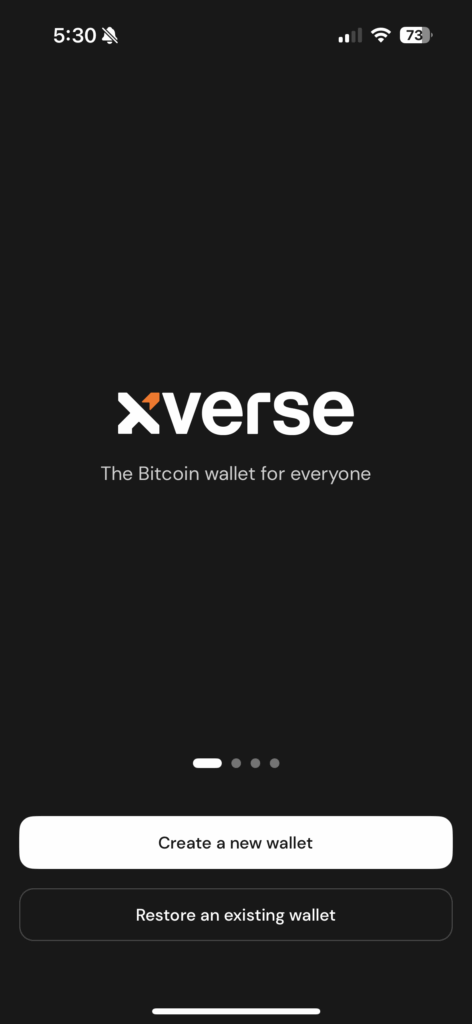
Click “Create a new wallet”
Step 3.
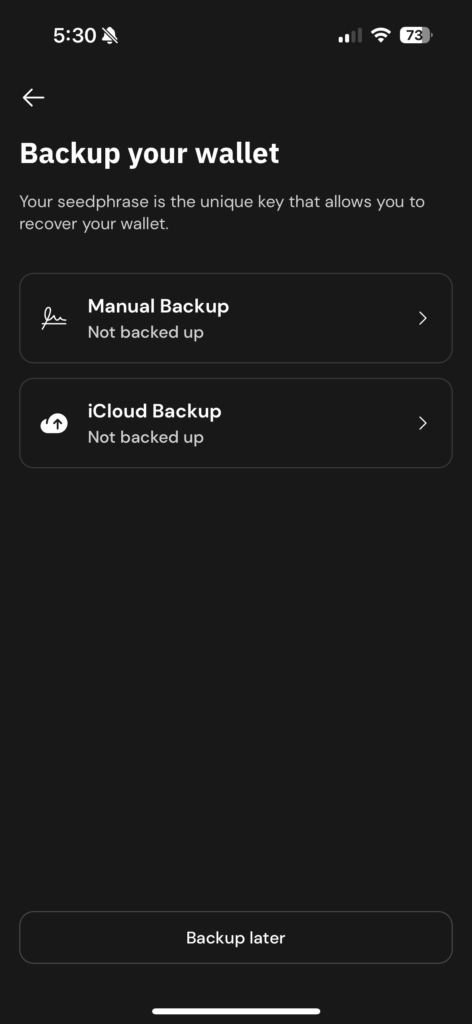
Back up your wallet. Manual back up allows you to set a password and view your seed phrase. Cloud back up is an option for app users which allows their seed phrase to be encrypted to their iCloud or One Drive. However, it is important to consider that if you lose access to your cloud data base or this gets hacked, you lose access to your wallet and assets or someone else can gain access to them. Therefore, the following steps will follow a manual backup.
Step 4.
Choosing your level of security. Although Biometric/Pin may be more convenient it is less secure. Another consideration should be losing your device with biometric and pin features as this means you would not be able to easily access your wallet.

Step 5.
Once you have selected your preferred level of security you will be prompted to set up a pin, password or biometric login. If using a password aim to choose a strong password with a mix of uppercase and lowercase case letters and crucially numbers and symbols. You will then be prompted to re enter your password to confirm it.


Step 6.
Arguably the most important step, WRITE DOWN YOUR SEED PHRASE. For security reasons your seed phrase will be hidden. Select reveal and then write your seed phrase down in order. It is vital that at this point you take your time and double check each word is correct and spelt correctly (remember that some words may use variations of words used in your language, such as color instead of colour). It is also important to think about where you would like to store your seed phrase and consider the pros and cons of each. For example, written on paper can’t be hacked but can be lost, a photo can leave your seed phrase vulnerable to hackers. Pro tip, write the numbers that correspond with each random word to make the next stage easier.

Step 7.
Verify your back up. You will be prompted to select a word that corresponds with a number from your seed phrase. For example, it may ask for the 3rd word. This is to ensure that you have correctly noted your seed phrase. At this point if you’re lazy like me it is handy to have the numbers written with the word hence the earlier pro tip!

Step 8.
Once you have completed a few rounds of selecting the correct seed phrase words you will be taken back to the backup your wallet page and a green tick and the words “Backed up” will appear below the manual back up option.

Step 9.
Click continue. Congratulations!! You have now set up an Xverse wallet. When not actively in use it is best to ‘log out’ (disconnect) of your wallet and uninstall the app as this is an extra layer of security for your wallet and crypto. Even if you decide to keep your wallet on your device for convenience (which reduces the level of security), it is always a good idea ‘log out’ of your Xverse wallet and disconnect the app, then reinstall (log back in) in order to ensure that you can access your wallet should anything happen to your device.






Leave a comment