

Step-by- step guide to reinstalling your Xverse wallet
Step 1.
Go to your app store and download the Xverse wallet app.

Step 2.
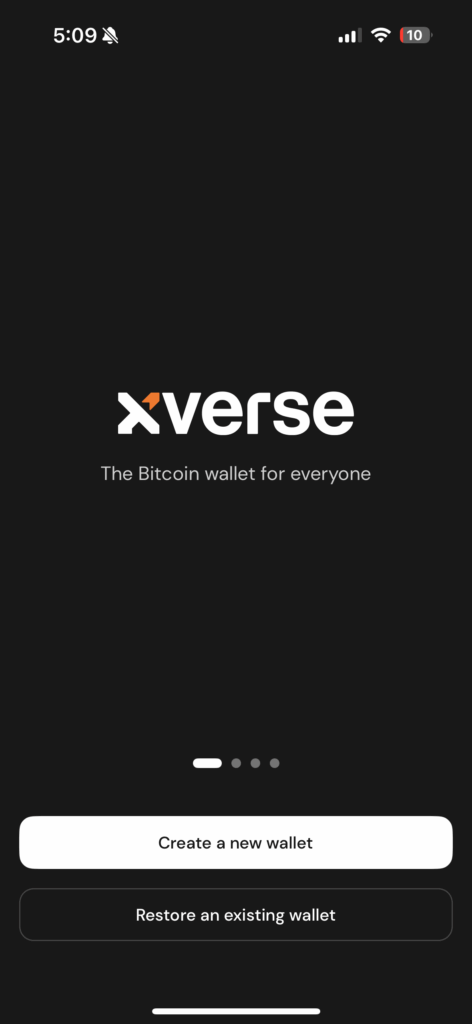
Click “restore an existing wallet”.
Step 3.
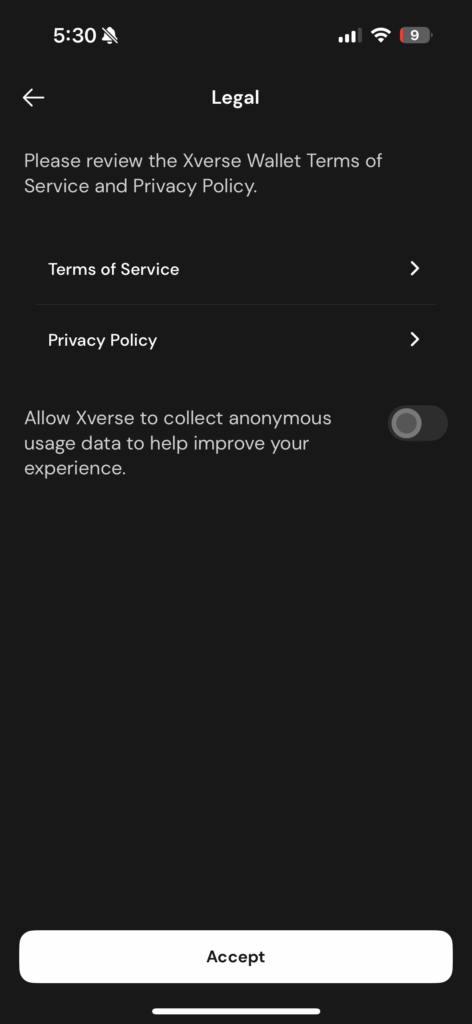
In order to use the wallet you will need to accept the terms of service and privacy policy.
Step 4.
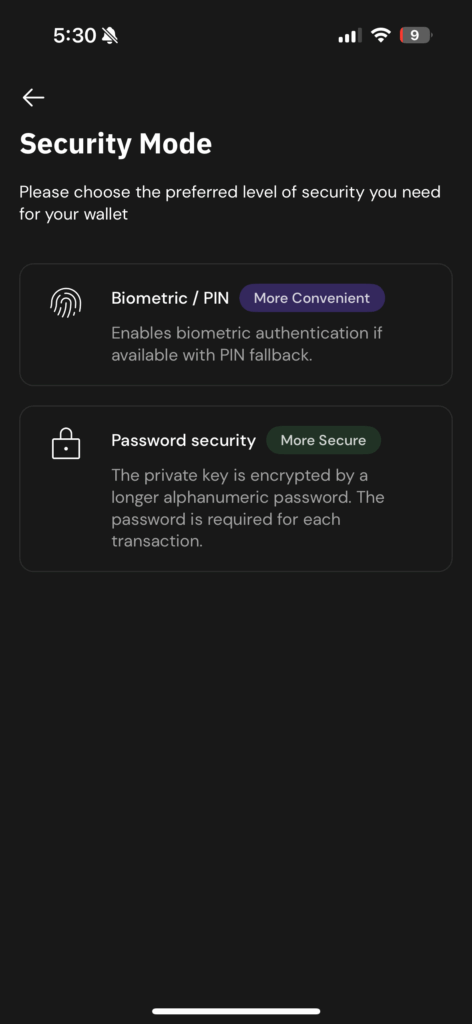
Select the level of security you wish to use. Password security is more secure and allows access to your wallet easily should anything happen to the device your wallet is stored on.
Step 5.
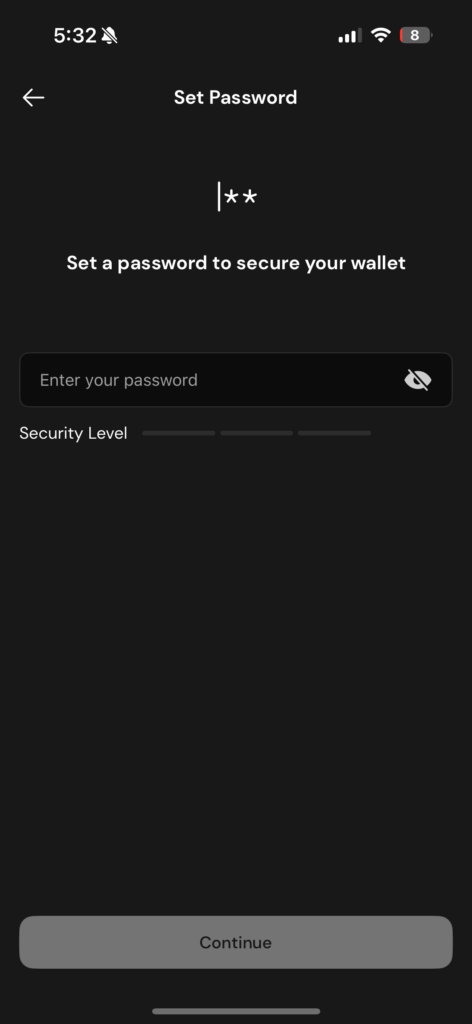
Enter your chosen password.
Step 6.
Choose how you would like to restore your wallet. This will depend on how you set up your wallet. The following steps will follow a manual restoration as it is important to remember that you can lose access to your cloud and digital cloud can be hacked. However, it is important to note that if you lose your seed phrase you will not be able to regain access to your wallet.
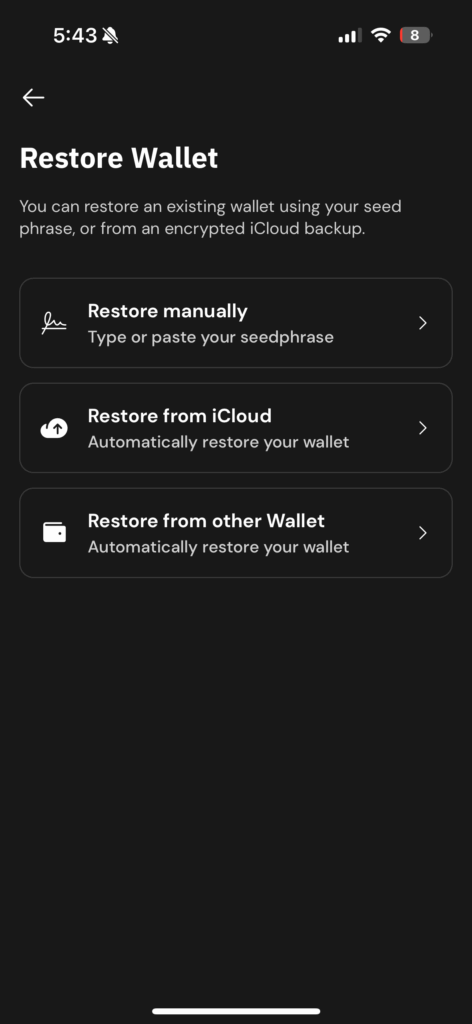
Step 7.
Enter your seed phrase. Type each word with a space between.
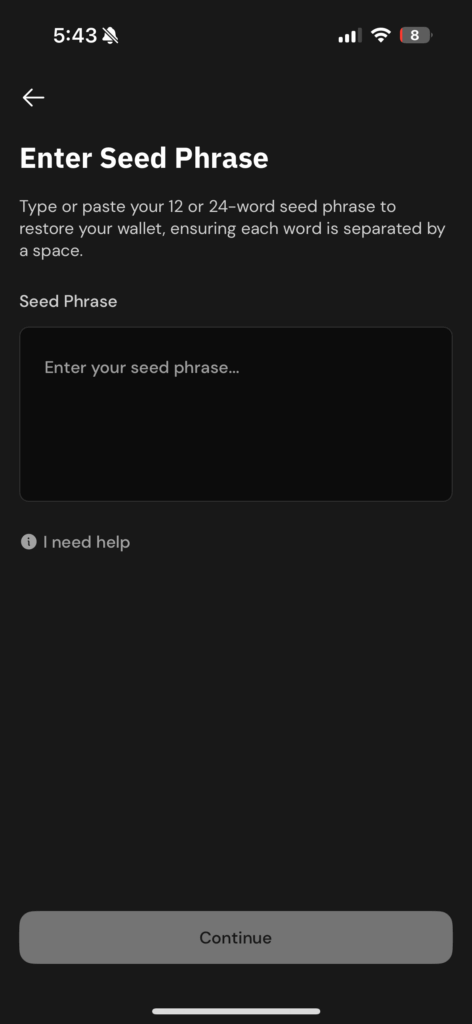
Step 8.
Select your preferred address type. This can be changed in your settings at any time. You can choses between a native or nested SegWit. A native SegWit is cheaper and less complicated. You have now restored your wallet!
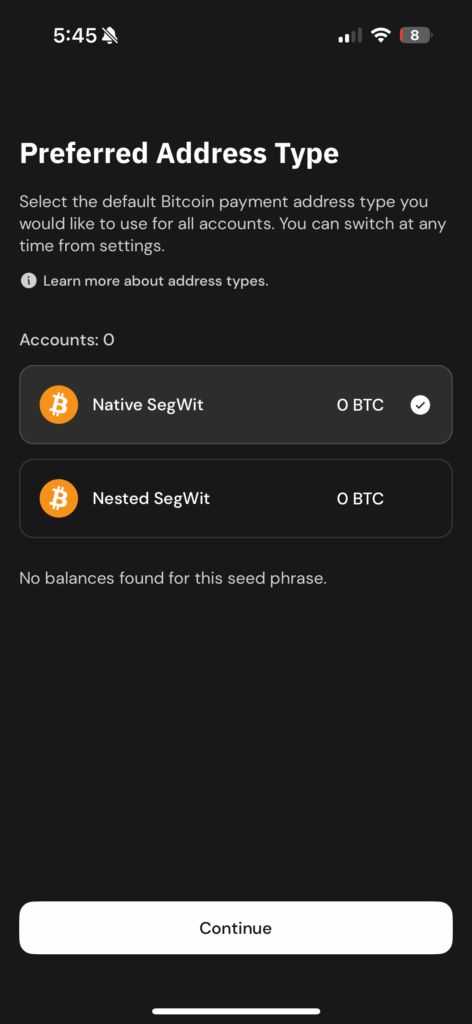


Leave a comment