

Disconnecting your Leather wallet step-by-step
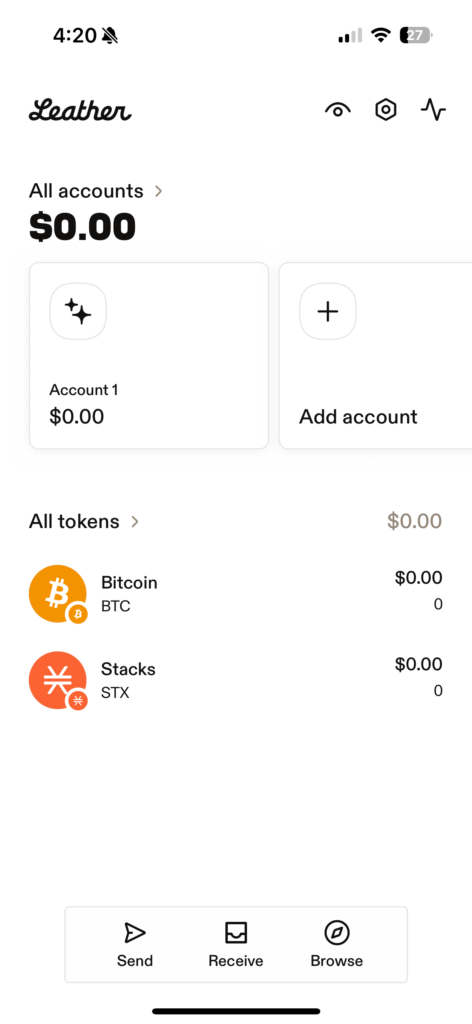
Step 1.
Open your app and click the small settings ‘bolt’ symbol at the top right of the screen.
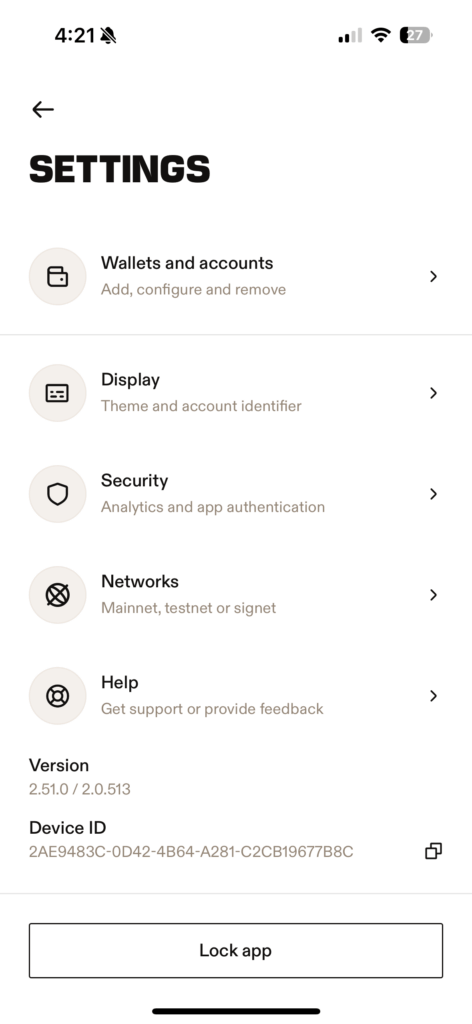
Step 2.
Select “Wallets and accounts”. Do not simply “Lock app” as this will not disconnect your wallet.
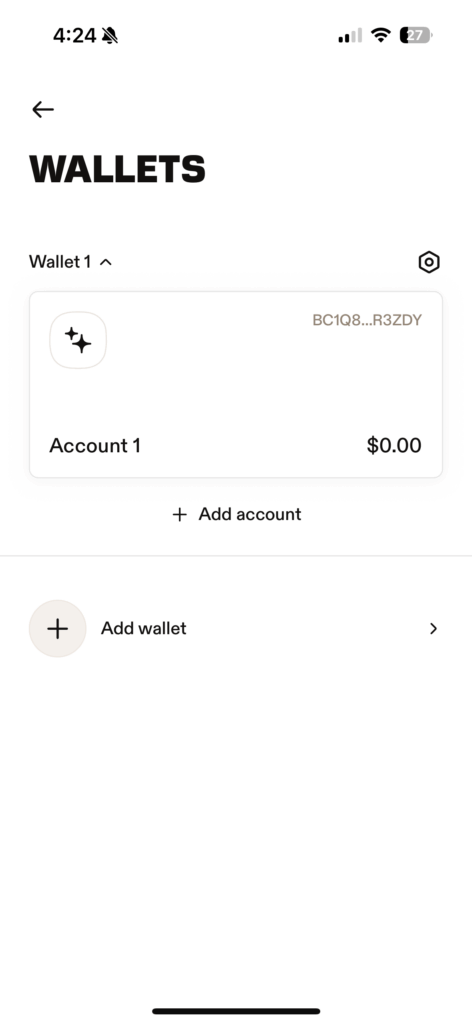
Step 3.
Select the settings ‘bolt’ symbol above the account you wish to disconnect.
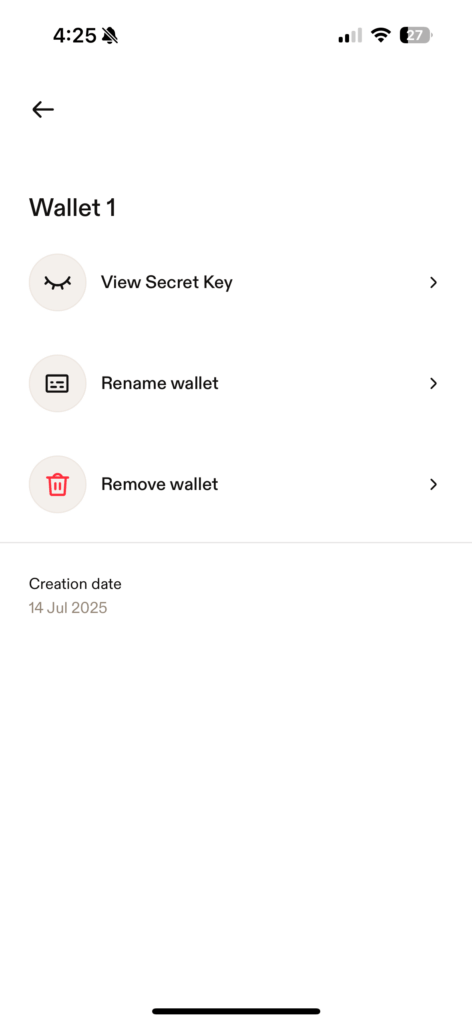
Step 4.
At this point, particularly if this is the first time removing your wallet, I recommend checking your seed phrase by clicking “View secret key”. Double check all of the words including the spelling as there can be variations of some words such as centre and centre.
Step 5.
Tap ”Done” to close your seed phrase.
Step 6.
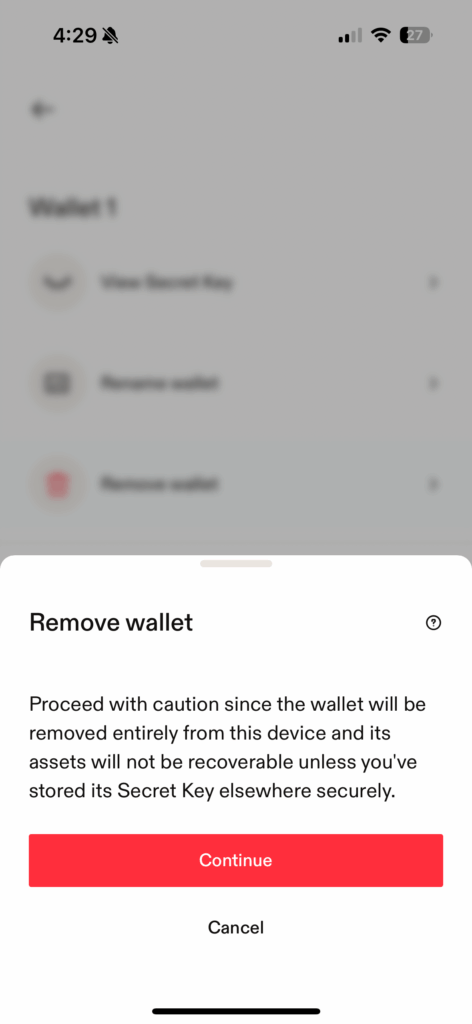
Select “Remove wallet” and confirm that you have backed up your key on the pop up by selecting “Continue”.
Step 7.
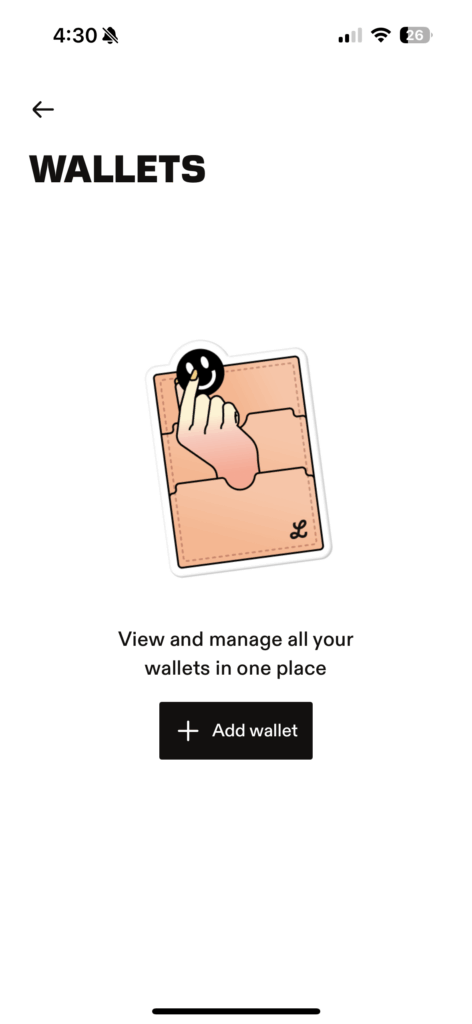
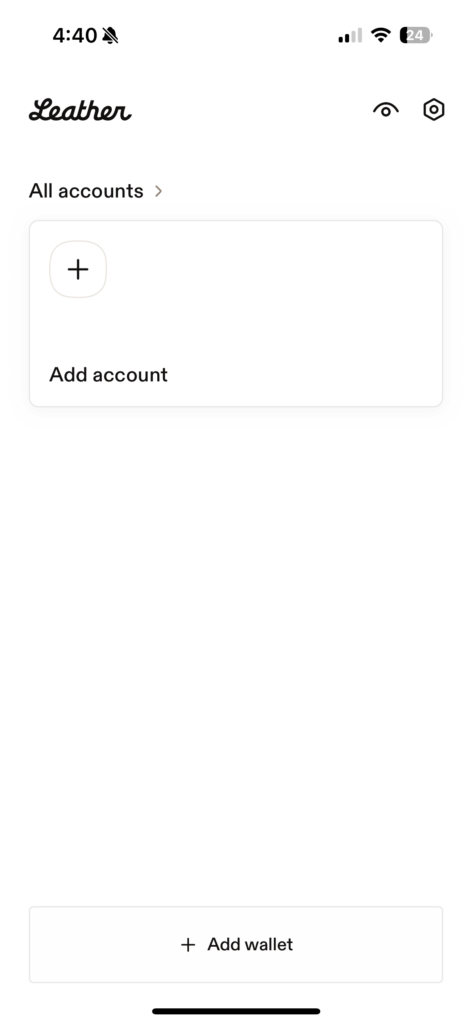
Your wallet should be removed. Press the back button to return to settings and again to return to your main page and check that the wallet has disappeared.
Step 9.
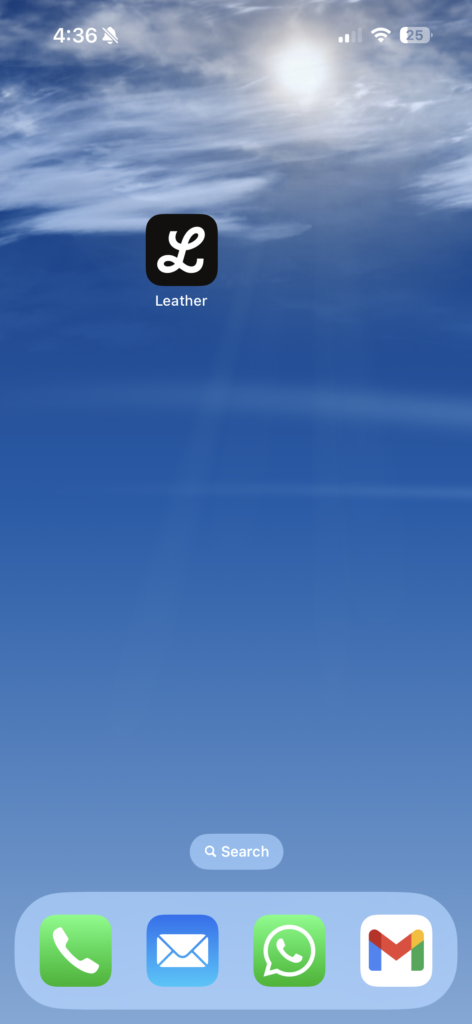
Come out of your app and hold down over the Leather app, select Remove app (for iPhone) or uninstall (for Android).

Leave a comment